Turn your Kindle into a portable screenplay library and read your favorite movie and television scripts anywhere.
If you’re a screenwriter, you’ve probably heard that one of the best ways to improve your writing is to read more screenplays. But spending hours reading scripts on your computer isn’t always the most comfortable experience.
I used to read all my screenplays on my computer until I discovered something that completely changed how I read scripts: you can download screenplay PDFs and read them directly on your Kindle Paperwhite!
Now, I read most of my scripts on my Kindle. I can take them anywhere, read comfortably on the couch, or work my way through a screenplay before bed without staring at my computer screen.
And here’s something else I love: you can send your own screenplays to your Kindle, too. It’s a great way to review your drafts, catch mistakes, and experience your story from a reader’s perspective.
The best part? There are plenty of screenplays available online for free, and transferring them to your Kindle is surprisingly simple.
Here’s how to get started.
Why I Love Reading Screenplays on My Kindle
Reading screenplays is one of the most valuable habits you can develop as a writer. It’s an opportunity to study how professional screenwriters handle dialogue, pacing, character development, scene transitions, and visual storytelling.
But reading an entire screenplay on a computer can feel like more work than pleasure.
That’s why I love using my Kindle Paperwhite.
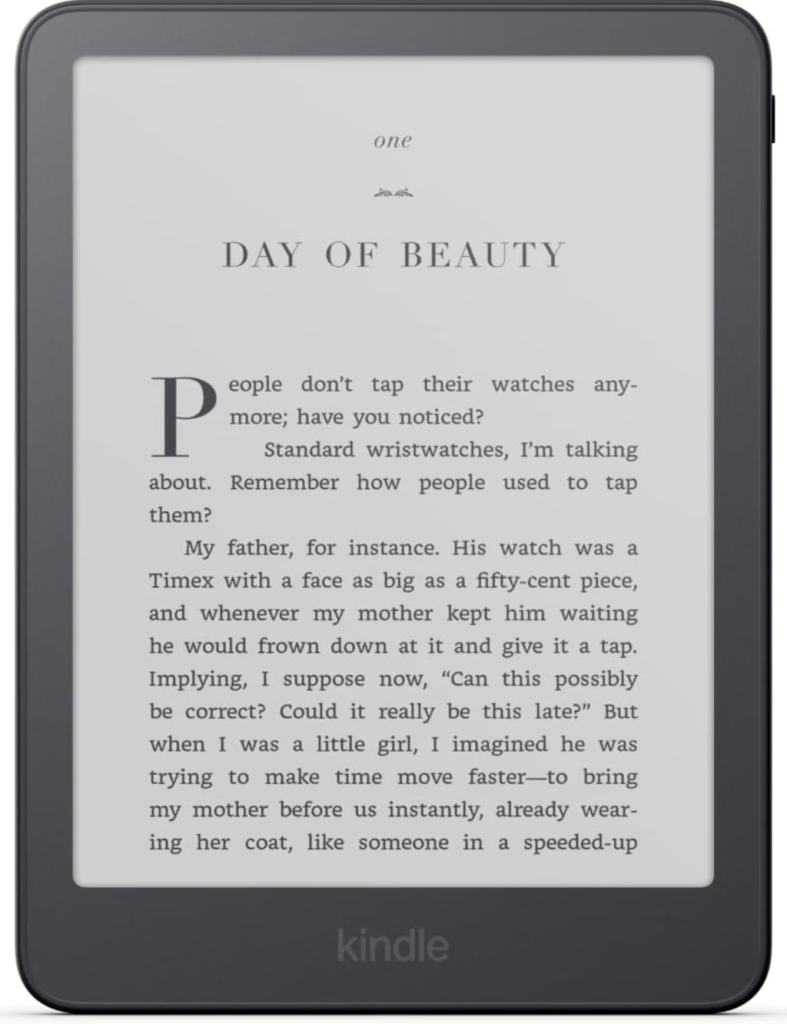
Unlike a traditional computer or tablet, the Kindle uses an E Ink display that looks much more like printed paper. It’s lightweight, portable, and designed specifically for reading.
I especially love that I can:
- Read anywhere: Take screenplays with me while traveling, waiting for appointments, or relaxing at home.
- Enjoy a more comfortable reading experience: The glare-free display is easier for me to read for extended periods than my computer screen.
- Avoid distractions: No emails, social media notifications, or other tabs competing for my attention.
- Build my own screenplay library: Keep multiple scripts organized in one convenient place.
- Read more consistently: Having scripts readily available makes it easier to fit reading into my daily routine.
And since screenplays are generally much shorter than novels, it’s possible to finish an entire feature screenplay in an afternoon.
Step 1: Find Free Screenplay PDFs Online
Before you can read a screenplay on your Kindle, you’ll need to download it.
Fortunately, several websites offer free access to movie and television scripts.
Script Slug
One of my favorite resources for finding screenplays. Script Slug has an extensive collection of movie and television scripts available as PDFs.
SimplyScripts
A longtime screenplay resource featuring film scripts, television scripts, and other writing materials.
Internet Movie Script Database (IMSDb)
A large collection of movie scripts you can read online. Some scripts are available as web pages rather than downloadable PDFs, so you may need to save or print them as PDFs before transferring them.
StudioBinder
StudioBinder offers screenwriting resources, screenplay examples, and articles that link to scripts you can study.
A quick note: Not every screenplay posted online is an official shooting script or authorized download. Look for publicly released scripts, awards-season screenplays, and reputable screenplay archives. Keep downloaded scripts for personal study and respect copyright restrictions.
Step 2: Download Your Screenplay
Once you’ve found a screenplay you’d like to read, you’ll need to save the PDF to your computer or phone.
- Open the screenplay on your chosen website.
- Find the PDF download button or link.
- Download the screenplay to your device.
- Save it somewhere easy to find, such as your Downloads folder.
If the script opens directly in your browser, look for the download icon, usually near the top of the PDF viewer.
If a script is displayed as a web page instead, you may be able to use your browser’s Print option and select Save as PDF.
Once you’ve downloaded the file, you’re ready to transfer it to your Kindle.
Step 3: Send the Screenplay to Your Kindle Paperwhite
This is the easiest part, and you don’t even need a USB cable.
Amazon has a free service called Send to Kindle that allows you to upload PDFs directly to your Kindle library.
Here’s how:
- Visit amazon.com/sendtokindle.
- Sign in using the Amazon account connected to your Kindle.
- Select the option to upload files.
- Choose the screenplay PDF you downloaded.
- Make sure Add to your library is enabled so the file will be available on your connected Kindle devices.
- Click Send.
That’s it!
Amazon will process your file and add it to your Kindle library. Your Kindle needs to be connected to Wi-Fi to receive the document.
Open your Kindle, go to your Library, and look for the screenplay. If it doesn’t appear immediately, give it a few minutes and sync your device.
You can upload PDFs up to 200 MB using Amazon’s web service, which is more than enough for most screenplay files.
Step 4: Read Your Screenplay Anywhere
Once your screenplay appears in your Kindle library, simply tap it to open.
You can now read it just like any other document on your Kindle.
I recommend downloading your scripts to the device while you’re connected to Wi-Fi. That way, they’re available even when you’re offline.
One important thing to know about screenplay formatting: Screenplay PDFs are designed around standard-sized pages, while a Kindle Paperwhite has a much smaller screen. Depending on the file, the text may appear smaller than it would in a regular Kindle book.
You can try zooming in, rotating the display if your model supports it, or adjusting the document’s available layout settings. Some PDF conversions also offer adjustable text, but the results can disrupt screenplay formatting.
Personally, I think preserving the screenplay’s original formatting is important, especially when you’re studying how scripts are structured. Experiment with the settings to find what works best for you.
Another Option: Email Scripts Directly to Your Kindle
Amazon also gives Kindle users a personal Send to Kindle email address.
This means you can email a screenplay PDF directly to your Kindle without visiting the upload website.
Here’s how:
- Sign in to your Amazon account.
- Open Manage Your Content and Devices.
- Find your Kindle under the Devices section and locate its Send to Kindle email address.
- Make sure your personal email address is included in your Approved Personal Document Email List.
- Compose a new email addressed to your Kindle email.
- Attach your screenplay PDF and send it.
Once the document is processed and your Kindle connects to Wi-Fi, it should appear in your library.
This is especially convenient if you regularly download screenplays and want to send them straight to your Kindle.
Can You Send Screenplays From Your Phone?
Absolutely!
If you download a screenplay PDF to your iPhone or Android device, you can use the sharing options to send it to the Kindle app.
First, make sure you have the free Kindle app installed and are signed in to your Amazon account.
Then:
- Download the screenplay PDF to your phone.
- Open the PDF or locate it in your Files or Downloads app.
- Tap the Share icon.
- Choose Kindle from the available sharing options.
- Follow the prompts to add the document to your Kindle library.
Once it syncs, you can open the screenplay on your Paperwhite.
This is a great option when you discover a script while browsing on your phone and want to save it for later.
Which Kindle Should You Buy for Reading Screenplays?
I personally use the Amazon Kindle Paperwhite, and it’s the model I recommend if you plan to do a lot of reading.
However, you don’t need the most expensive Kindle to read screenplay PDFs.
Here are a few options worth considering.
Kindle Paperwhite: My Favorite
Starting at $199.99 for the 2026 model
The Kindle Paperwhite features a 7-inch glare-free display, adjustable warm lighting, waterproof construction, and up to 12 weeks of battery life under Amazon’s stated testing conditions.
The larger display is especially helpful for reading screenplays, since PDFs often have fixed formatting.
If you enjoy reading at night or want a dedicated device for both novels and scripts, this would be my first choice.
Basic Amazon Kindle: The Budget-Friendly Option
Starting at $149.99 for the 2026 model
The standard Kindle is smaller, lighter, and more affordable than the Paperwhite.
It has a 6-inch glare-free display, 16GB of storage, and up to six weeks of battery life.
You can still read PDFs and transfer screenplays using the same Send to Kindle service.
The main drawback is the smaller screen, which can make screenplay text harder to read.
Older or Refurbished Kindles: Save Even More
You can also look for older-generation Kindles, refurbished models, or Amazon’s pre-owned device listings.
These can be excellent options if you primarily want an affordable device for reading.
Check the device’s condition, battery health, return policy, and compatibility with Send to Kindle before purchasing.
My Money-Saving Tip: Wait for Prime Day or Black Friday
If you’re not in a hurry, I recommend waiting for one of Amazon’s major shopping events.
Prime Day, Prime Big Deal Days, Black Friday, and Cyber Monday are all worth checking for Kindle discounts.
Amazon has offered substantial discounts on previous-generation Kindles during these events, sometimes making a Paperwhite considerably more affordable.
You can also compare older models with the newest versions. For simply reading screenplays, you probably don’t need every premium feature.
Prices listed are U.S. starting prices as of November 2026 and may change. Some models cost more without lock-screen advertisements.
One Final Tip: Make Screenplay Reading a Habit
Having a Kindle full of screenplays is wonderful, but the real benefit comes from actually reading them.
Try setting a goal of reading one screenplay each week.
Pay attention to how professional writers introduce characters, establish conflict, structure scenes, and create dialogue that feels natural.
Read scripts from movies you’ve already seen, then compare what was written on the page with what appeared on screen.
You’ll begin noticing storytelling techniques you can apply to your own writing.
And the next time you’re tempted to spend another hour scrolling through your phone, you might find yourself.
Bonus: You Can Read Your Own Screenplays on Your Kindle, Too!
Here’s another reason I love using my Kindle Paperwhite as a screenwriter: you can send your own screenplays to it!
Whether you’re working on your first draft, revising a completed screenplay, or preparing a script for submission, reading your own work on a Kindle can be incredibly helpful.
Sometimes, looking at your screenplay on a different device helps you catch things you might have overlooked while writing. It’s a great way to step away from your computer and experience your story as a reader rather than a writer.
How to Send Your Own Screenplay to Your Kindle
- Open your screenplay in Final Draft, WriterDuet, Fade In, Celtx, or your preferred screenwriting software.
- Export your screenplay as a PDF file.
- Visit Amazon’s Send to Kindle website.
- Upload your screenplay PDF.
- Select the option to add it to your Kindle library and click Send.
- Sync your Kindle Paperwhite and open your screenplay!
Now you can read your own script anywhere, just like a professionally produced screenplay.
Why I Recommend Reading Your Own Scripts This Way
Reading your screenplay away from your writing software can help you:
- Catch mistakes: Notice typos, awkward sentences, and unnecessary descriptions.
- Evaluate pacing: Identify scenes that drag or moments that feel rushed.
- Study your dialogue: Pay attention to how conversations flow without immediately stopping to rewrite them.
- Experience your story differently: Read your screenplay from beginning to end without constantly editing.
- Prepare for revisions: Make mental notes or jot down changes to address when you return to your computer.
I especially recommend doing this after finishing a draft. Instead of immediately jumping into revisions, send your screenplay to your Kindle and read it all the way through.
You might be surprised by what you notice when you’re no longer staring at the same screen you’ve been writing on for weeks.